



Mari bergabung, dapatkan informasi dan teman baru!

Android
29.6KThread•18.2KAnggota
Tampilkan semua post

beudegulz
#7546
Banners UCCW Skins v1.6
Requirements: Android 2.2+
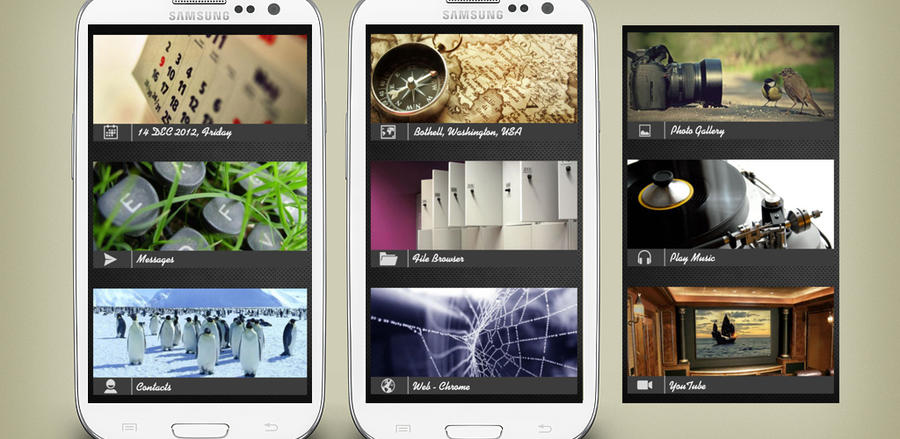
Overview: Screen full of tiny button like icons is sooo passe. Jazz up your screen with wide app launcher banners. The perfect style mix between Windows Phone 8 and Google Now Cards.
![kaskus-image]()
== THIS UCCW SKIN IS EDITABLE, INCLUDING HOTSPOTS ==
== INSTRUCTIONS ==
To use this skin, you have to install, apply and edit/assign hotspots to the skin.
Install -
This is a skin installer. Launch the app and tap "Install Skin".
Next screen, tap "OK" for "Replace app?".
Next screen, tap "Install". When that finishes, tap "Done". Skin is now installed.
Apply -
You must have Ultimate custom widget (UCCW) 2.1.2 or higher installed. http://goo.gl/eDQjG
Place a UCCW widget of 5x2 size on the homescreen. You can do so by dragging the widget from app drawer or by long pressing homescreen to pull up widget menu.
This will open the skins list. Skins downloaded from play store will show up ONLY HERE.
Select any Banners skin you want from here. The skin will be applied to the widget.
Repeat the step to place any number of widgets.
Recommendation - Use Apex or Nova launcher. Grid size 8x5. Horizontal margin = medium, Vertical margin = large. Dock and statusbar hidden. Navbar stock size.
Edit -
After applying the skin as mentioned above, launch UCCW app itself. Tap Menu, tap "hotspot mode" and tap 'OFF'. UCCW will exit.
Now tap anywhere on the uccw widget. It'll open in uccw edit window.
Scroll through the components in the bottom half of the screen. Assign apps to hotspots in this window. This IS a MUST.
You can change color, format etc too (optional) in this window.
When done, tap Menu, tap "hotspot mode" and tap 'ON'. UCCW will exit.
Your changes will now be applied to the widget..
== TIPS / TROUBLESHOOT ==
If the "Install" step fails; go to Android settings > Security and make sure "Unknown sources" is enabled.
The apps must obviously be installed in your device already to launch them. The skin won't install it.
To change temperature unit between Celsius and Fahrenheit -> Launch UCCW app itself. Tap Menu, tap settings. 3rd option from top is "Celsius". If it is selected, temperature will display in Celsius. If unselected, Fahrenheit.
If weather info is not displayed/updated, Launch UCCW app itself. Tap Menu, tap settings, tap location. Make sure "Auto location" is checked. If it is already selected, unselect and select again.
.
More Info:
![kaskus-image]()
Requirements: Android 2.2+
Overview: Screen full of tiny button like icons is sooo passe. Jazz up your screen with wide app launcher banners. The perfect style mix between Windows Phone 8 and Google Now Cards.
== THIS UCCW SKIN IS EDITABLE, INCLUDING HOTSPOTS ==
== INSTRUCTIONS ==
To use this skin, you have to install, apply and edit/assign hotspots to the skin.
Install -
This is a skin installer. Launch the app and tap "Install Skin".
Next screen, tap "OK" for "Replace app?".
Next screen, tap "Install". When that finishes, tap "Done". Skin is now installed.
Apply -
You must have Ultimate custom widget (UCCW) 2.1.2 or higher installed. http://goo.gl/eDQjG
Place a UCCW widget of 5x2 size on the homescreen. You can do so by dragging the widget from app drawer or by long pressing homescreen to pull up widget menu.
This will open the skins list. Skins downloaded from play store will show up ONLY HERE.
Select any Banners skin you want from here. The skin will be applied to the widget.
Repeat the step to place any number of widgets.
Recommendation - Use Apex or Nova launcher. Grid size 8x5. Horizontal margin = medium, Vertical margin = large. Dock and statusbar hidden. Navbar stock size.
Edit -
After applying the skin as mentioned above, launch UCCW app itself. Tap Menu, tap "hotspot mode" and tap 'OFF'. UCCW will exit.
Now tap anywhere on the uccw widget. It'll open in uccw edit window.
Scroll through the components in the bottom half of the screen. Assign apps to hotspots in this window. This IS a MUST.
You can change color, format etc too (optional) in this window.
When done, tap Menu, tap "hotspot mode" and tap 'ON'. UCCW will exit.
Your changes will now be applied to the widget..
== TIPS / TROUBLESHOOT ==
If the "Install" step fails; go to Android settings > Security and make sure "Unknown sources" is enabled.
The apps must obviously be installed in your device already to launch them. The skin won't install it.
To change temperature unit between Celsius and Fahrenheit -> Launch UCCW app itself. Tap Menu, tap settings. 3rd option from top is "Celsius". If it is selected, temperature will display in Celsius. If unselected, Fahrenheit.
If weather info is not displayed/updated, Launch UCCW app itself. Tap Menu, tap settings, tap location. Make sure "Auto location" is checked. If it is already selected, unselect and select again.
.
More Info:
Code:
https://play.google.com/store/apps/details?id=vic.uccw.banners

0